
Published – September 5, 2025
Welcome to the first post in my new “Tools of the Trade” series!
This series is all about sharing the tools that have made a real difference in my day-to-day work—whether you’re a consultant, a system admin, or just someone navigating the Microsoft ecosystem. These are the utilities I’ve come to rely on, and I’m always on the lookout for new ones. If a tool saves time, reduces friction, or helps me deliver better results, I want to share it with you.
Let’s kick things off with one I truly can’t live without: Level Up for Dynamics 365/Power Apps.
Firefox: https://addons.mozilla.org/en-US/firefox/addon/level-up-for-d365-power-apps/
🧩 What is Level Up?
Level Up is a browser extension available for Chrome, Edge, and Firefox (though some features may vary by browser). It’s designed specifically for working within model-driven app forms, including Dynamics 365. Once installed, it lives in your browser and becomes an indispensable companion when working in Power Platform environments.
You’ll recognize it by its little rocket ship icon. Click it while on a form, and you’ll get a menu packed with powerful utilities. There are too many to cover in one post, so I’ll focus on the ones I use constantly.
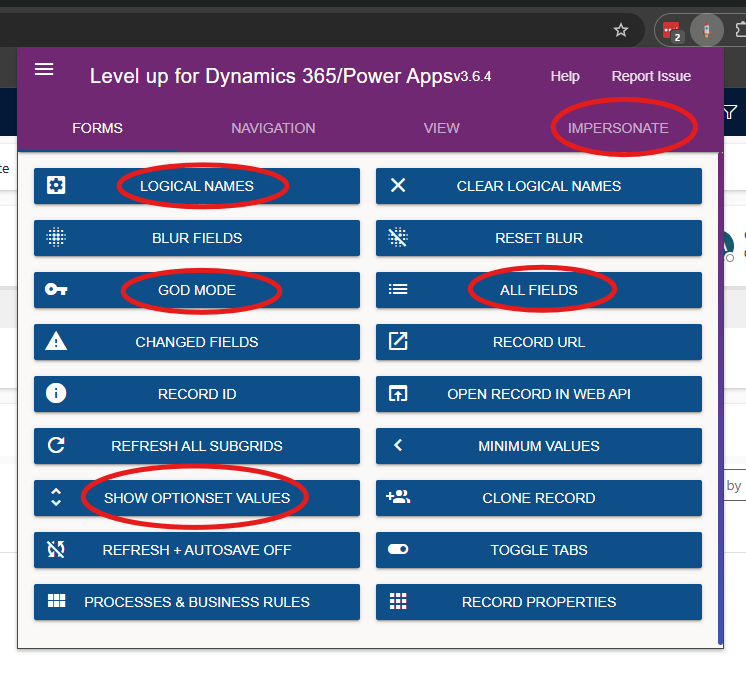
🔍 Logical Names
When building Power Automate flows or integrations, you often need the logical name of a column—not just the display name. Logical names are the true identifiers used in the backend, often prefixed with the publisher’s name for custom fields.
With Level Up, just click “Logical Names” and voilà—all logical names are overlaid directly on the form. You can copy them instantly, saving you from digging through the solution explorer. There’s also a “Clear Logical Names” button to toggle them off, or you can just refresh the page.
🛠️ God Mode
This one’s for system admins only, and it’s a game-changer.
God Mode reveals all hidden fields on a form and makes read-only fields editable. It’s perfect for testing, debugging, or overriding locked fields. Whether you’re resetting a form to test a flow or need to access a hidden admin field, God Mode gives you full control.
📋 All Fields
Forms rarely show every column in a table. But sometimes, you need to see everything—especially when auditing or troubleshooting.
Click “All Fields” and a new tab opens with a searchable list of every field on the current record. You’ll see the data behind the scenes, even for fields not visible on the form. I use this one daily.
🎛️ Show Option Set Values
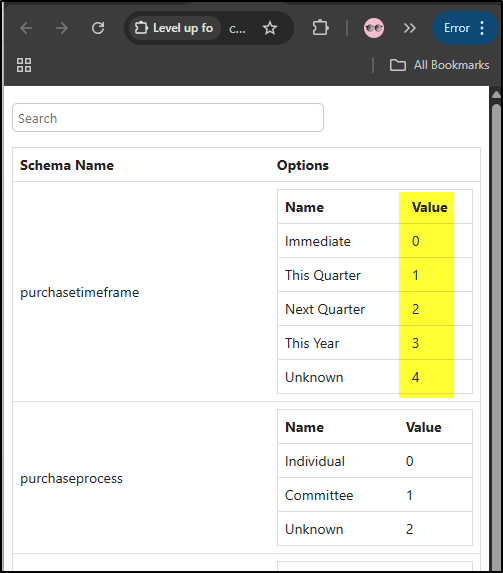
Dropdowns (aka option sets) store values as numbers, not just display names. This is critical when mapping data in flows or integrations.
With this feature, you can view the display name, field name, and underlying value for each option. It’s a must-have for any mapping or automation work.
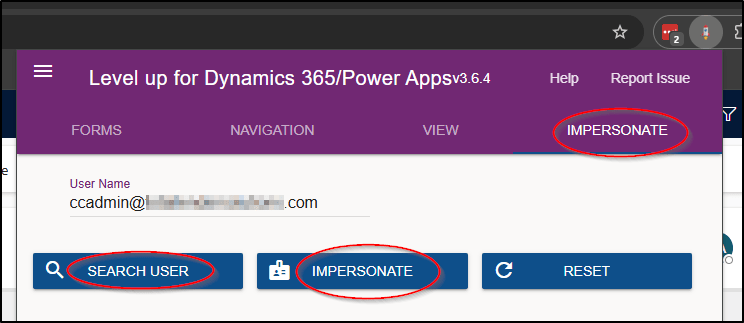
👤 Impersonation
This one’s incredibly powerful for testing and debugging.
As a system admin, you can impersonate any user in the system. This lets you see exactly what they see—perfect for verifying security roles, replicating bugs, or confirming that a fix worked. I always impersonate a user before and after making a change to ensure the issue is resolved. Bonus tip: screenshot the impersonated session (you’ll see their initials in the top-right corner) to confirm the fix before asking them to retest.
🧠 Final Thoughts
There are many more features in Level Up, but these are the ones I use every single day. Whether I’m building flows, troubleshooting user issues, or just navigating forms more efficiently, this tool saves me hours each week.
If you haven’t tried it yet, I highly recommend installing it and exploring its capabilities. And if you’ve got a favorite feature I didn’t mention—or another tool you swear by—drop me a note. I’m always looking to level up my own toolkit.
Stay tuned for the next post in the series!
 YoderCoder
Leave a comment